1
Select the recipe screenshot
Choose screenshots or photos that clearly show ingredient lists and steps. Multiple images can help when the recipe spans more than one screen.
Screenshot to grocery list
Bytful helps iPhone cooks move a recipe screenshot out of the camera roll and into a cooking workflow: scan, review, save, plan, shop.
Start free with up to 7 saved recipes. Eligible subscribers can try Bytful Pro free for 7 days.
How to save it
1
Choose screenshots or photos that clearly show ingredient lists and steps. Multiple images can help when the recipe spans more than one screen.
2
Bytful reads visible recipe text and creates a preview card. Check quantities, steps, and missing details before saving.
3
Use the saved recipe in your meal plan when you actually intend to cook it. This keeps the grocery list focused.
4
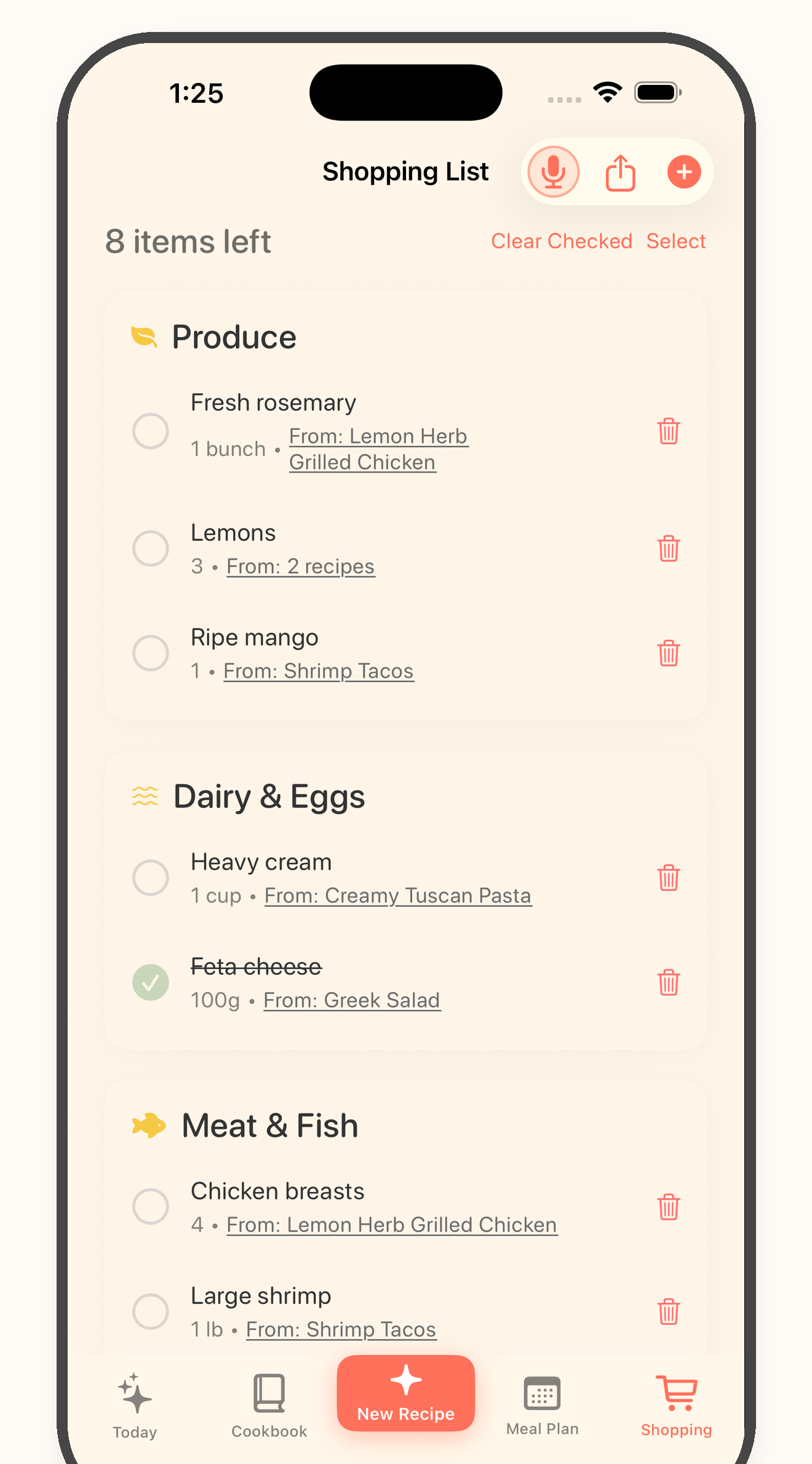
Turn planned recipes into a shopping list, then review pantry items and substitutions before heading to the store.
Why this works
A screenshot stores the idea, but it does not give you searchable ingredients, planning, or a list for the store.
Review habit
OCR and recipe extraction can miss details. Review the card first, especially amounts, units, and recipe steps.
Planning habit
The grocery list is strongest when it reflects the meals you will cook, not every screenshot you have saved.
Questions
The practical Bytful flow is to scan the screenshot, review the recipe card, save it, then use planned recipes to build the grocery list.
Readable screenshots with clear ingredient lists and instructions work best. Cropped, blurry, or incomplete screenshots may need manual cleanup.
Yes. Bytful supports selecting multiple recipe images, which helps when a recipe is split across several screenshots.
Related Bytful pages
Try one recipe first