1
Find the recipes hiding in Photos
Open your camera roll and look for readable recipe screenshots, cookbook pages, food notes, or ingredient photos that include enough detail to review later.
Camera roll recipe organizer
Bytful helps iPhone cooks move useful recipe screenshots, food photos, notes, and copied text out of the camera roll, then review them as recipe cards before planning, shopping, or cooking.
Start free with up to 7 saved recipes. Eligible subscribers can try Bytful Pro free for 7 days.
How to save it
1
Open your camera roll and look for readable recipe screenshots, cookbook pages, food notes, or ingredient photos that include enough detail to review later.
2
If a recipe spans multiple screenshots or a cropped post, keep every relevant image open so you can check ingredients, amounts, steps, timing, and serving notes.
3
Use Bytful to turn the useful details into a cleaner recipe card, then review the card against the original screenshot before saving it.
4
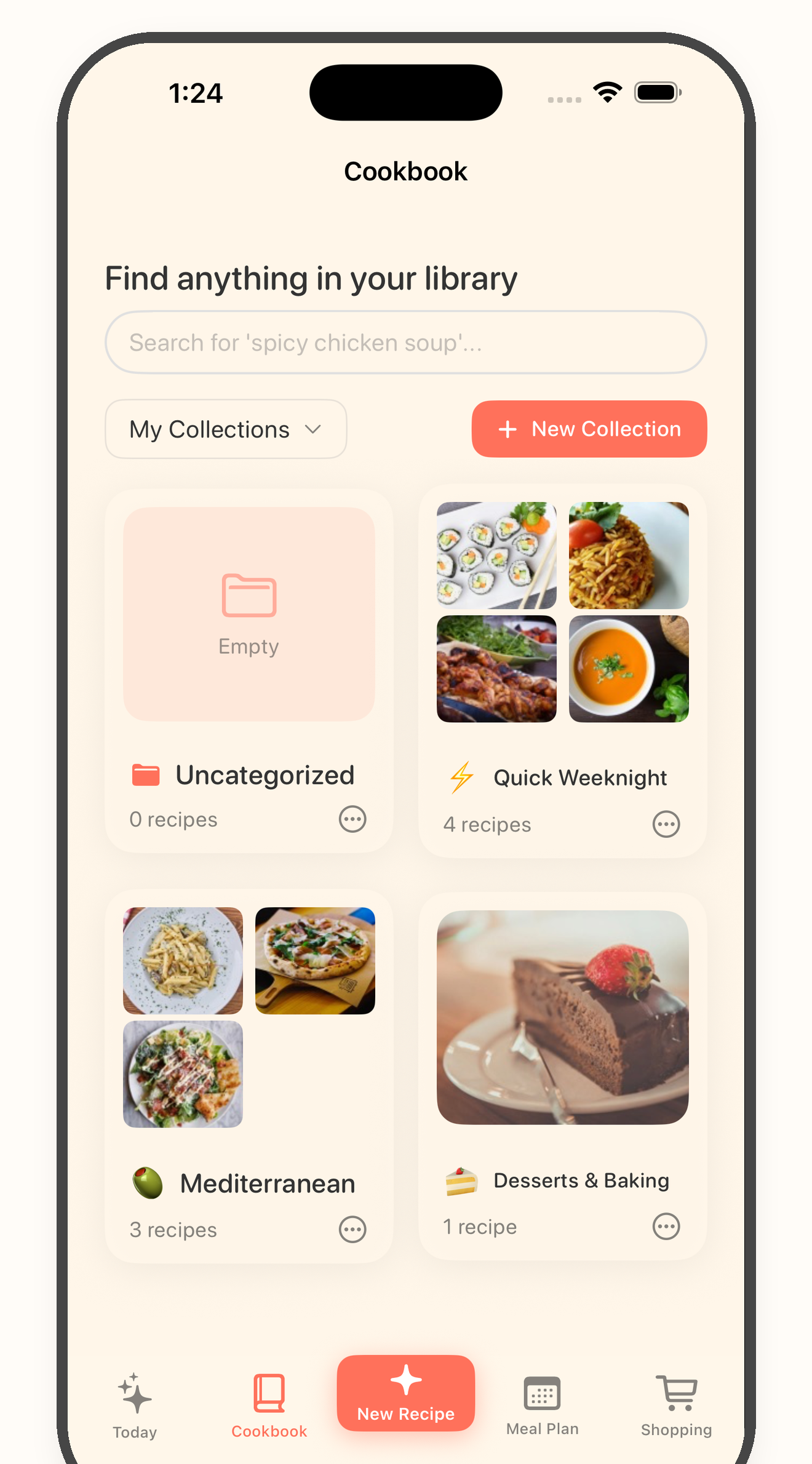
Save the keepers into your cookbook, then use them for a collection, meal plan, aisle-sorted grocery list, or hands-free cooking flow.
Camera roll cleanup
A camera roll can capture recipe ideas fast, but it is hard to search, plan, shop, or cook from scattered screenshots.
Review before saving
If the source is cropped, blurry, missing amounts, or only shows a finished dish, treat it as inspiration until you can verify the recipe details.
Cook from keepers
Once a card looks right, Bytful keeps the recipe connected to planning, shopping, and guided cooking instead of buried in Photos.
Questions
No. Screenshots and photos can be blurry, cropped, private, or missing details. Use Bytful as a review workflow and check the card before saving, shopping, or cooking.
No. Use content you can open and review on your iPhone. Bytful helps organize recipe details you choose to save or import.
Keep the original until you have reviewed the saved recipe title, servings, ingredient amounts, units, steps, timing, notes, and any preference or label details yourself.
Related Bytful pages
Try one recipe first